
This article walks you through how to set up and manage Departments, Career Paths, and Roles in Zal — the three building blocks used to organize your company's structure and map out how employees can grow within it. Whether you're setting things up for the first time or making updates to an existing structure, you'll find step-by-step instructions for each below.
This article contains the following sections:
|
This article is relevant to: Admins |
Departments, Career Paths, and Roles Explained
Zal uses a three-tier structure to organize your company's workforce and map out how employees can grow within it:
-
🏢 Departments are the top-level units that represent distinct functions or divisions within your company (e.g., Technology, Marketing, Finance).
-
🗺️ Career Paths sit within departments and group related roles into distinct trajectories an employee might follow (e.g., an Engineering path and a Design path within the Technology department).
-
👤 Roles are the individual job positions that live within a Career Path (e.g., Junior Engineer, Software Engineer, Senior Engineer).
Together, they form a clear hierarchy: Department → Career Path → Roles
Tip 🌟: We recommend setting things up in the following order: Roles first, then Career Paths, then Departments — this way your roles are ready to add as soon as you build out your paths.
How to Add a Department
A Department in Zal is the top-level organizational unit used to group teams and roles. It represents a distinct function or division within your company, and everything beneath it — Career Paths and individual roles — are organized under it.
- Click on the Settings gear in the bottom, left-hand corner of Zal.
- Select Departments to open the Departments page, which shows all current departments.
- To add a new department, click + New Department.
- Provide a name (e.g., "Sales" or "Marketing") and, if desired, add a logo.
- When you're done, click Submit.
How to Create a Career Path and Add Roles
A Career Path in Zal is a structured pathway within a department that groups related job roles together. When setting up a department, you create Career Paths to organize the different trajectories an employee might follow within that department. Roles are the individual positions that make up a Career Path.
Example: Within a Marketing department, you may have two paths: Content and Growth.
- The Content path might contain roles like Copywriter, Content Strategist, and Editorial Manager
- The Growth path might contain roles like Marketing Analyst, Growth Manager, and VP of Growth
- Open the department you want to add a career path to (Settings > Departments > Click on the department name).
- If you want to add a role to an existing career path, click on its name within department settings.
- To create a new career path, click + New career path and give it a name.
- Click + Add New Role.
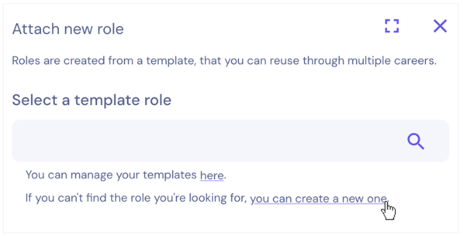
- The "Attach new role" modal will appear on the right side of your screen. To create a new role, click you can create a new one.
- Fill out the following fields in the "Attach new role" form.
- Name: The title of the role (e.g., "Senior Engineer").
- Description: A brief summary about the role's function.
- Experience Level: A number representing the seniority of the role. For example, an entry-level role might be a 1, while a chief-level role might be a 5. You can customize this scale to fit your company's structure.
- Responsibility Type: Whether the role is an Individual Contributor or a Manager.
- Job Description: A detailed description of the role's responsibilities.
- Skills & Industry Certifications: The skills and certifications required for the role (e.g., "Project Management," "AWS Certified Developer"). If you've already added a job description, you can click the cycle icon and Zal will automatically extract relevant skills and certifications from it.

- When you're done, click Submit. The role will appear in the Career Path.
- From there, you can add higher or lower experience level roles by clicking + Add New Role Above or + Add New Role Below, respectively.
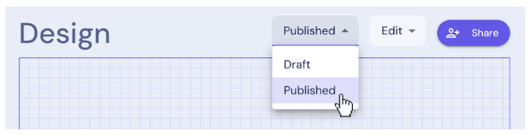
- When you're done adding roles, click the "Draft" dropdown at the top of the page and change the selection to "Published."
- Repeat the process as needed to add additional Career Paths and Roles.